> For the complete documentation index, see [llms.txt](https://docs.ibexa.ai/llms.txt). Markdown versions of documentation pages are available by appending `.md` to page URLs; this page is available as [Markdown](https://docs.ibexa.ai/manual/agents/knowledge-base-as-shared-context.md).
# Shared Context
Agent instructions define *how* an agent should behave, but they are not a good place to store large, evolving, or shared reference material. The **Knowledge Base** solves this: it is a central library of documents that any agent can be connected to, so the same source of truth can back many agents at once - without copy-pasting content into every agent's instructions.
This guide explains the pattern of using Knowledge Base content as reusable context, and walks through practical examples: **Voice & Tone Guidelines**, using the Knowledge Base as **long-term memory**, and a few other common use cases.
## Why Use the Knowledge Base Instead of Instructions?
| | Instructions | Knowledge Base |
| ----------------------- | --------------------------------------------------------------------- | --------------------------------------------------------------------------------------------------------------- |
| **Best for** | Short, stable behavioural rules (role, goal, workflow, output format) | Long, detailed, or frequently updated reference material |
| **Size** | Up to 64,000 characters, all loaded on every run | Effectively unlimited; only relevant excerpts are retrieved |
| **Reuse across agents** | Must be duplicated into each agent's instructions | One document can be linked to many agents |
| **Updating** | Requires editing and resubmitting the agent | Publish a new document version - all linked agents pick it up automatically |
| **Versioning** | None | Full draft/publish/archive/rollback history (see [Knowledge Base](/manual/knowledge-base.md#managing-versions)) |
In short: instructions tell the agent *what to do*, and the Knowledge Base gives it *what it needs to know* to do it well.
## Prerequisites: Setting Up Knowledge Base Access
Before any agent can search or retrieve Knowledge Base content, an organisation **Owner** or **Administrator** needs to complete a one-time setup. This is usually done once per organisation, not per agent.
### Step 1: Configure the Default Embedding Model
Knowledge Base search relies on an **embedding model** to turn document content and search queries into vectors it can match semantically. This must be configured before documents can be searched effectively.
1. In the main menu, go to **Organisation Settings** (Owner or Administrator only - see [Organisation Settings](/manual/organisation/organisation-settings.md)).
2. In the **Default Embedding Model** field, select the embedding model your organisation should use.
3. Select **Save**.
> **Note:** This is an organisation-wide default - you configure it once, not per agent or per document. If it is missing, Knowledge Base search will not work reliably for any agent.
### Step 2: Add the Knowledge Base MCP Server and Attach Its Tools
Agents need the built-in **Knowledge Base MCP Server** connected before they can call any search or retrieval tool.
1. In the main menu, go to **MCP Servers** (Owner or Administrator only - see [MCP Servers](/manual/organisation/mcp-servers.md)).
2. Add the built-in server with address `internal://knowledge-base` (see [Knowledge Base MCP Server](/manual/organisation/built-in-mcp-servers/knowledge-base-mcp-server.md)) if it is not already present, and confirm it is **Enabled**.
3. On the agent you want to give access to, go to **Step 3: Tools** of the Add Agent/Edit Agent wizard (or the agent's **Tools** tab) and select **Select tools**.
4. Choose the **Knowledge Base MCP Server** and attach the specific tools the agent needs, for example:
* `search_documents` and `get_document` for read-only retrieval (the typical case for "shared context" use cases in this guide).
* `create_document`, `update_document`, and `publish_document_version` if the agent should also be able to write back to the Knowledge Base (see [Example 2](#example-2-knowledge-base-as-long-term-memory) below).
5. Select **Next**/**Submit** to save.
> See [Knowledge Base MCP Server](/manual/organisation/built-in-mcp-servers/knowledge-base-mcp-server.md) for the full list of available tools.
### Step 3: Configure the Scope of Access
Attaching the MCP Server's tools is not enough on its own - you must also define **which part of the Knowledge Base** the agent is allowed to see. There are three scope levels:
| Scope | What the agent can see and do |
| -------------------- | -------------------------------------------------------------------------------------------- |
| **None** *(default)* | No Knowledge Base access - every tool call fails. |
| **All** | Full access to every document and folder in your organisation's Knowledge Base. |
| **Selected folders** | Access limited to one or more specific folders (and everything inside them) that you choose. |
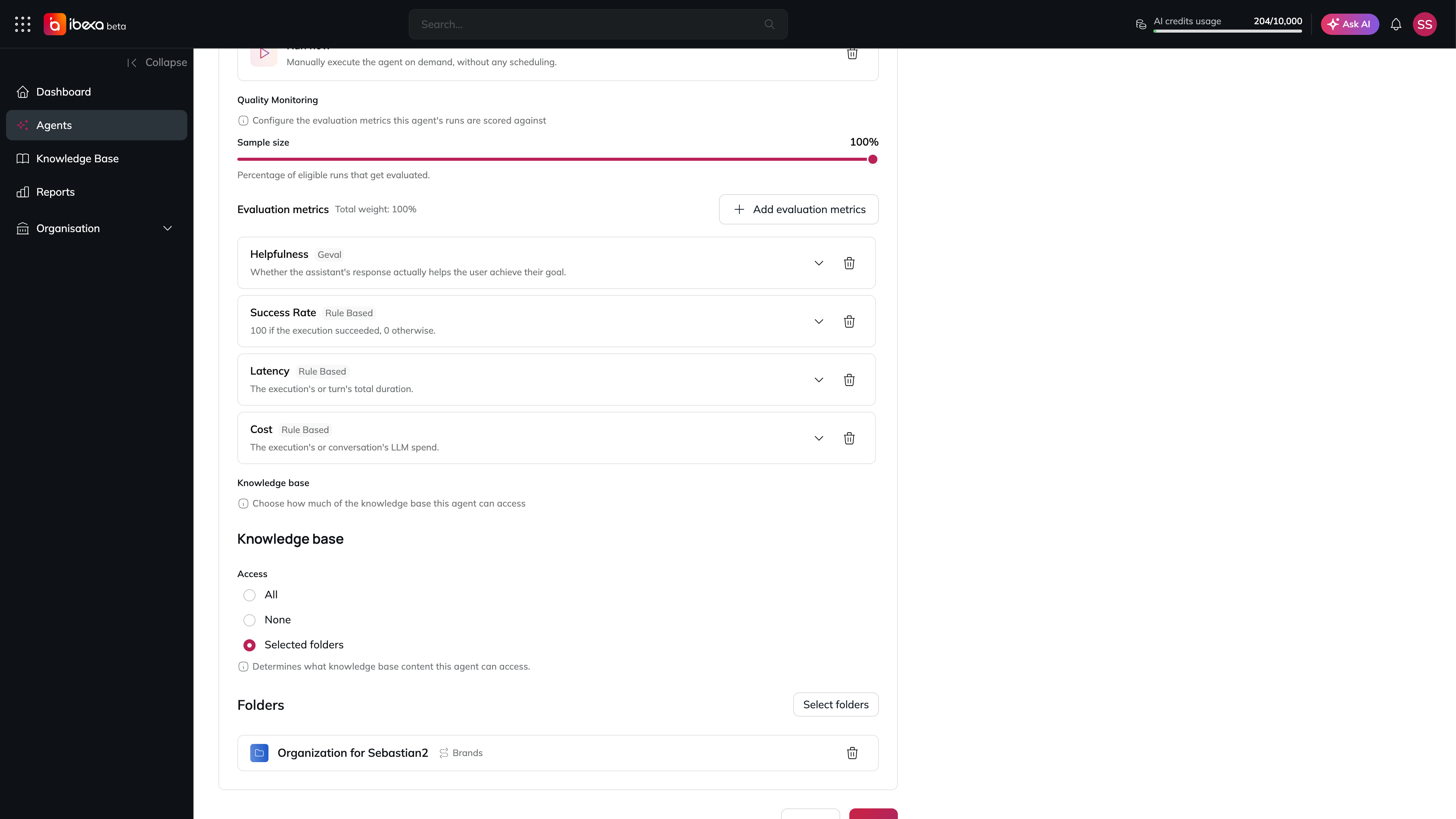
Knowledge Base access limited to one folder on the Edit Agent page
Set this scope on the agent, alongside its **Knowledge Base Access** field in **Step 4: Knowledge Base** of the Add Agent/Edit Agent wizard (see [Agents](/manual/agents.md#step-4-knowledge-base)). Prefer **Selected folders** scope whenever an agent only needs a narrow slice of content (e.g. one product line, one department, or a single memory folder) - this keeps retrieval focused and prevents the agent from ever seeing unrelated content elsewhere in the Knowledge Base.
> **Security note.** Scope is enforced on every tool call. A branch-scoped agent that tries to read or touch something outside its assigned folders gets a "not found" response - the same as if the item did not exist at all.
Once these three steps are done for an agent, it can retrieve (and, if the relevant tools were attached, write to) the Knowledge Base content described in the examples below.
## How It Works
1. **Author content** in the Knowledge Base as one or more documents, organised into folders (see [Knowledge Base](/manual/knowledge-base.md)).
2. **Publish** the document - only published versions are retrievable by agents; drafts are ignored.
3. **Make sure the agent has Knowledge Base access configured** as described in [Prerequisites](#prerequisites-setting-up-knowledge-base-access) above - either via its **Knowledge Base Access** field, its attached **Knowledge Base MCP Server** tools, or both.
4. **The agent retrieves relevant passages automatically** at run time, based on the user's question or task - you don't need to paste the content into the conversation yourself.
## Example 1: Voice & Tone Guidelines
If you have several content-generating agents (blog writer, social media assistant, product description generator, and so on), you want them all to sound consistent - without repeating the same paragraph of style rules in every agent's instructions.
### Setup
1. In the Knowledge Base, create a folder such as **Brand / Voice & Tone**.
2. Add a document, e.g. **"Voice & Tone Guidelines"**, containing:
* Brand personality (e.g. "confident, warm, never pushy").
* Preferred and avoided words or phrases.
* Formatting conventions (sentence case headlines, Oxford comma, etc.).
* Examples of on-brand vs. off-brand copy.
3. Publish the document.
4. Link it to every content-generating agent, either via **All** access or by adding the **Brand / Voice & Tone** folder to each agent's **Selected folders** access.
5. In each agent's instructions, add a short pointer rather than duplicating the rules:
> Before writing any copy, consult the Voice & Tone Guidelines in the Knowledge Base and ensure the output matches the brand's tone.
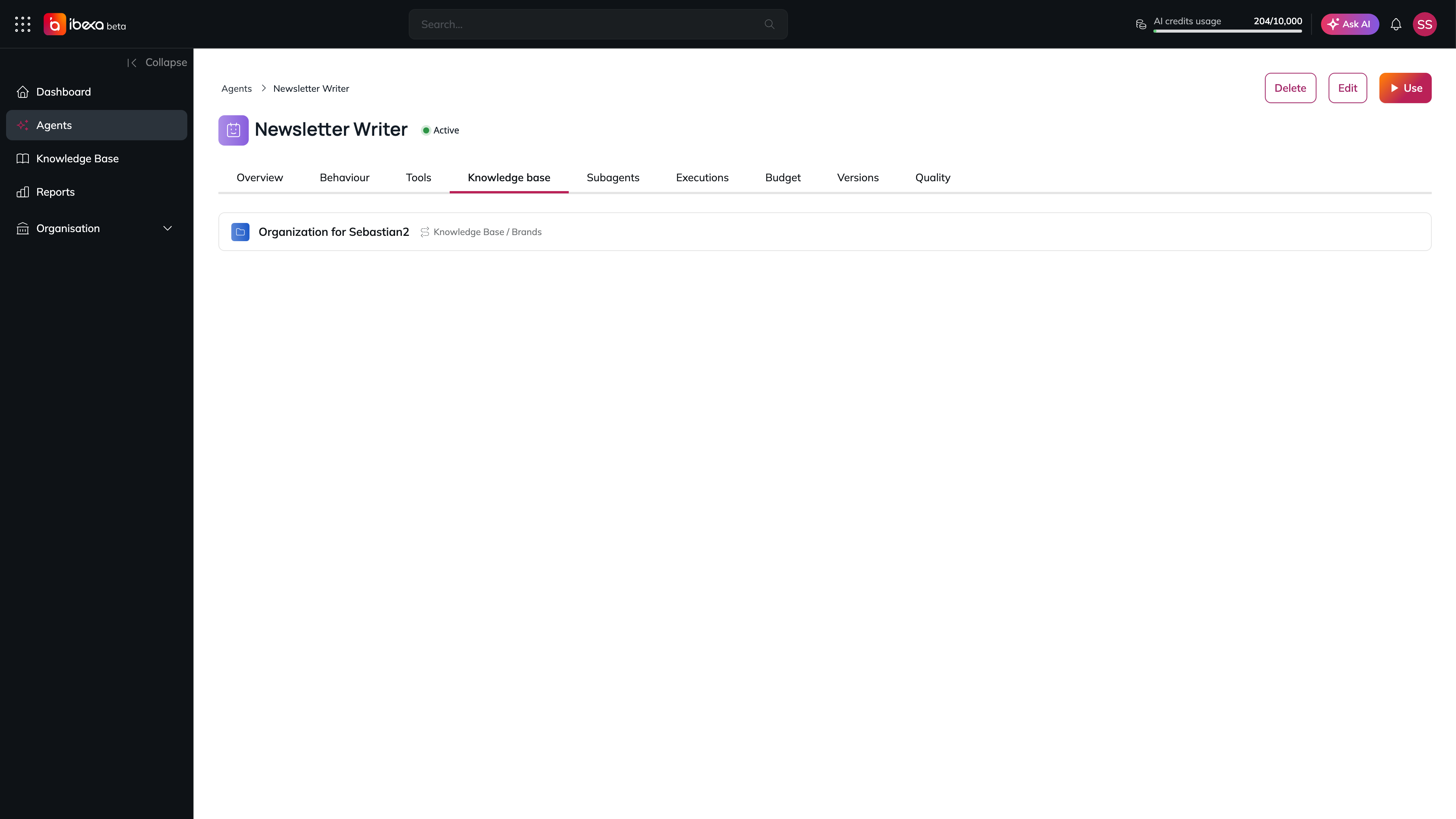
The agent's Knowledge base tab shows the folder it can read
### Result
When you later refine the guidelines (e.g. banning a phrase, adding a new example), you edit and publish **one document**. Every agent that references it applies the update on its very next run - no need to touch each agent individually.
> See the [Building an Announcement Generator Agent](/tutorials/building-an-announcement-generator-agent.md) tutorial for a walkthrough of a content-generating agent built around this pattern.
## Example 2: Knowledge Base as Long-Term Memory
Agents don't retain memory between separate conversations by default. The Knowledge Base can act as durable, shared **long-term memory** that persists and accumulates over time, independent of any single conversation.
### Setup
1. Create a folder such as **Agent Memory / Customer Insights** (or scope it per agent, e.g. **Agent Memory / Support Agent**).
2. Have the agent - or a teammate - periodically write summaries of important, reusable information into a document, for example:
* Recurring customer questions and the answers that worked.
* Decisions made in past runs that should inform future ones (e.g. "always quote prices in EUR for this client").
* Facts learned during a conversation that are useful beyond it (e.g. a customer's stated preferences).
3. Publish updates to this document as new information arrives, appending or restructuring as needed.
4. Give the relevant agent **Selected folders** access to this folder, and instruct it to check the folder before answering:
> Check the Agent Memory folder for prior context about this customer or topic before responding. If you learn something durable and reusable during this conversation, note it so it can be added to memory.
### Result
The agent behaves as if it "remembers" prior interactions, even though each conversation technically starts fresh - because the durable facts live in a document it retrieves from, not in its own transient conversation state.
> **Note:** The agent cannot write to the Knowledge Base by itself unless it has a tool for that (e.g. a Knowledge Base MCP Server - see [Knowledge Base MCP Server](/manual/organisation/built-in-mcp-servers/knowledge-base-mcp-server.md)). Otherwise, updating "memory" documents is a manual or semi-automated step performed by your team.
## Example 3: Product Catalogue / FAQ Grounding
Give a customer-facing assistant an accurate, up-to-date source of truth instead of relying on the model's general knowledge:
1. Upload or write product sheets, pricing tables, or an FAQ document into a **Products** or **Support** folder.
2. Link the folder to your support or sales assistant agent.
3. In the agent's instructions, make the source of truth explicit:
> Answer product and pricing questions using only the Knowledge Base content. If the answer is not found there, say so rather than guessing.
This keeps answers grounded and reduces hallucinated pricing or feature claims, and it lets non-technical teammates update the source of truth by simply editing a document - no agent reconfiguration required.
> See the [Building a Product FAQ Assistant](/tutorials/building-an-product-faq-assistant.md) tutorial for a walkthrough of a customer-facing assistant built around this pattern.
## Example 4: Shared Policy and Compliance Rules
Legal, security, or compliance rules that must be respected by *every* agent in the organisation (e.g. "never share customer PII", "always include a disclaimer on financial advice") are a good fit for a single, centrally-owned document:
1. Create a **Compliance / Global Rules** document, owned and maintained by a designated administrator.
2. Give all relevant agents **Selected folders** access to this one document (or folder).
3. Reference it briefly in each agent's instructions:
> Always follow the rules defined in the Compliance / Global Rules document. These rules take priority over any other instruction.
Because the rules live in one place, an update (e.g. a new regulatory requirement) can be rolled out to every agent at once by publishing a single new version.
## Best Practices
* **Keep documents focused.** One topic per document (e.g. separate "Voice & Tone" from "Pricing") makes retrieval more precise than one giant catch-all file.
* **Point, don't paste.** In instructions, reference the Knowledge Base by name and describe when to use it, rather than copying its content into the instructions - that defeats the purpose of having a single reusable source.
* **Use folders to scope access.** Group documents by purpose (brand, memory, compliance, product) so you can grant **Selected folders** access precisely instead of exposing the entire Knowledge Base to every agent.
* **Always publish.** Only published versions are retrievable - a draft update will not affect agent behaviour until published (see [Managing Versions](/manual/knowledge-base.md#managing-versions)).
* **Review before wide rollout.** Because one document can affect many agents, treat edits to shared documents (voice & tone, compliance rules) with the same care as a code change - check the **Versions** tab and roll back if a published update causes problems.