> For the complete documentation index, see [llms.txt](https://docs.ibexa.ai/llms.txt). Markdown versions of documentation pages are available by appending `.md` to page URLs; this page is available as [Markdown](https://docs.ibexa.ai/manual/assistant.md).
# Assistant
The AI Assistant is a conversational chat interface built into the Ibexa Agentic Marketing Platform. It allows you to ask questions, give instructions, and interact with an AI agent without leaving the page you are working on.
In a newly provisioned organisation the Assistant is also connected to the **IAMP Documentation** MCP server, so it can search the product documentation and answer questions about the platform itself. See [MCP Servers](/manual/organisation/mcp-servers.md#servers-your-organisation-starts-with).
## Prerequisites
The Assistant is powered by a dedicated **assistant agent** that must be configured for your organisation. If no assistant agent has been set up yet, the **Ask AI** button in the top bar is disabled and shows one of the following messages when hovered:
| Your role | Message shown |
| -------------------------- | ---------------------------------------------------------------------------------------------------------- |
| **Member** | *"No assistant agent has been set up yet. Ask your organisation owner or admin to choose one."* |
| **Owner or Administrator** | *"You need to choose an agent before asking AI."* with a **Select an agent** link to Organisation Settings |
If you are an Owner or Administrator, go to **Organisation → Settings** in the main menu to set the Default Assistant Agent. See [Organisation Settings](/manual/organisation/organisation-settings.md) for instructions.
## Opening and Closing the Assistant
The **Ask AI** button is located in the top bar on every page of the platform.
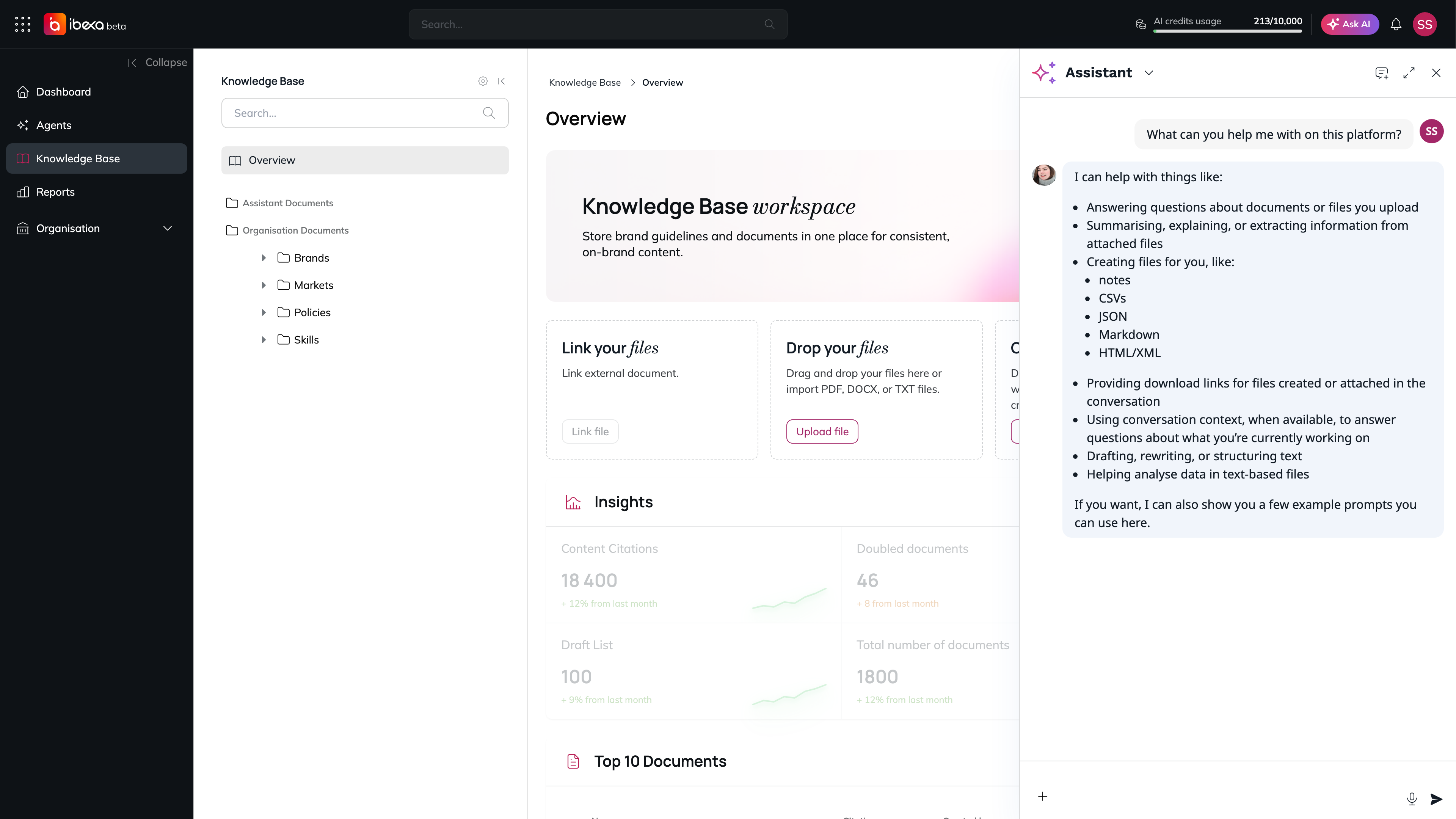
* Select **Ask AI** to open the assistant panel - it slides in from the right side of the screen without navigating away from your current page.
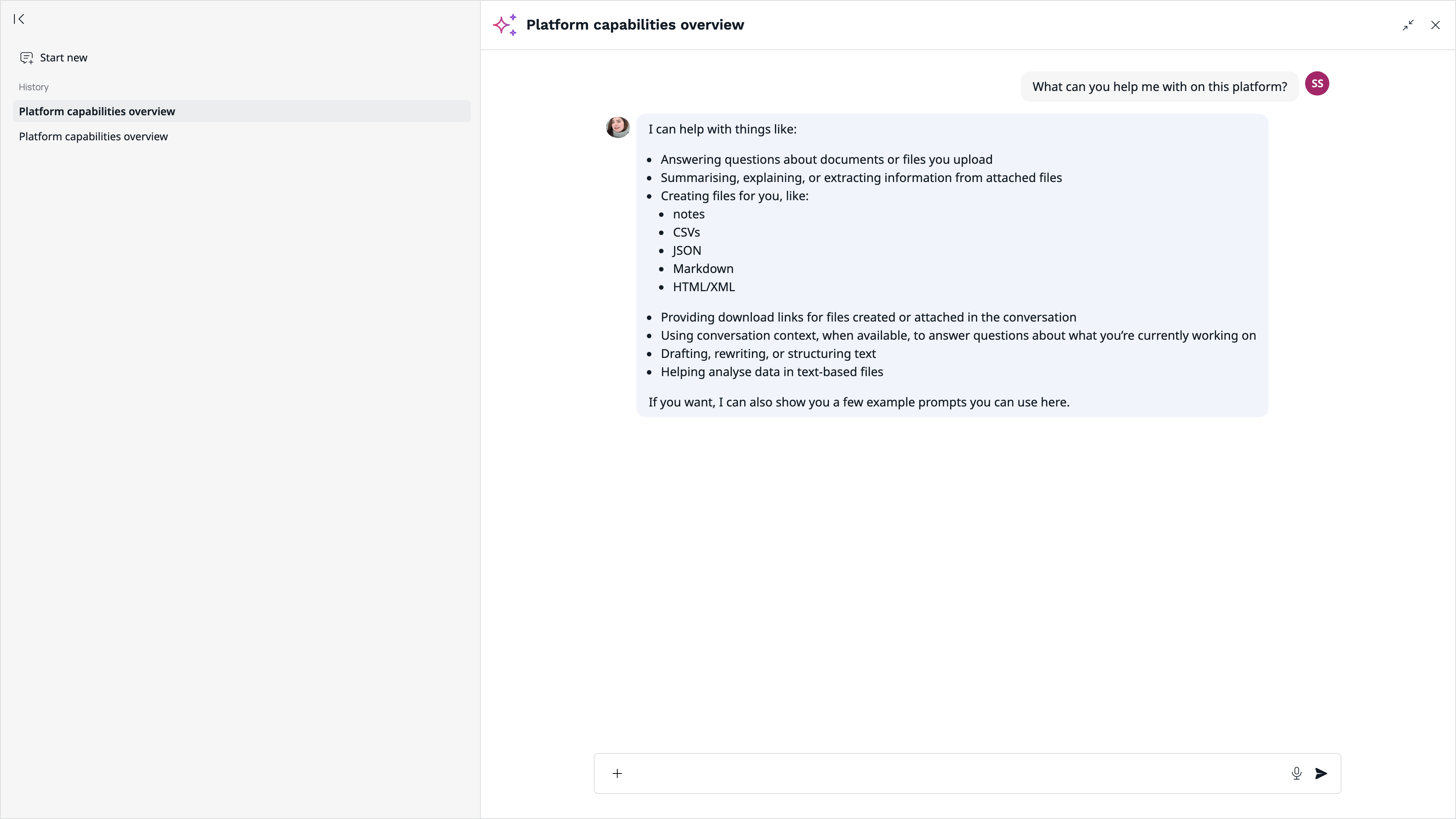
* Select **Ask AI** again, or the close button inside the panel, to close it. The panel can also be expanded to **full screen** using the expand icon inside the panel header, giving you more space for longer conversations.
The Assistant panel opened over the current page
## Sending a Message
1. Open the assistant panel by selecting **Ask AI**.
2. Type your question or instruction in the text input at the bottom of the panel.
3. Press **Enter** or select the send button to submit. The assistant responds in the same panel. Each exchange - your message and the assistant's reply - appears as a conversation thread.
## Conversation Continuity
The assistant automatically saves and restores your last conversation. When you reopen the panel (even after navigating to a different page or starting a new session), it picks up where you left off. To start a fresh conversation, use the **conversation management** controls inside the panel (new conversation button).