> For the complete documentation index, see [llms.txt](https://docs.ibexa.ai/llms.txt). Markdown versions of documentation pages are available by appending `.md` to page URLs; this page is available as [Markdown](https://docs.ibexa.ai/manual/organisation/ai-models.md).
# AI Models
This guide explains how to manage AI Model Providers on the Ibexa Agentic Marketing Platform - how to add a new provider, update its details, set or update its credentials, view and manage its available models, refresh its model list, and delete a provider when it is no longer needed.
## Before You Begin
You must be logged in as the **Owner** or an **Administrator** of your organisation to manage AI Model Providers.
## What is an AI Model Provider?
An AI Model Provider is a connection between the Ibexa Agentic Marketing Platform and an external AI service (such as OpenAI, Google, or Anthropic). Once a provider is configured with valid credentials, the platform can use its models for tasks like generating text, answering questions, or searching knowledge bases. The platform supports the following provider types:
| Provider | Notes |
| ---------------- | ---------------------------------------------------------------------------------- |
| **OpenAI** | Requires an API key. Optionally accepts a custom API base URL and organisation ID. |
| **Google** | Requires an API key. |
| **Anthropic** | Requires an API key. |
| **Mistral** | Requires an API key. |
| **Hugging Face** | Requires an API key. |
| **Ollama** | Requires a custom base URL (e.g. a locally hosted instance). No API key needed. |
| **Bielik** | Requires a custom base URL pointing to your Bielik instance. |
## How to Add an AI Model Provider ?
Adding a provider is a three-step process: choose the provider type, give it a name, then supply its credentials.
### Step 1: Open the Add AI Model Provider dialog
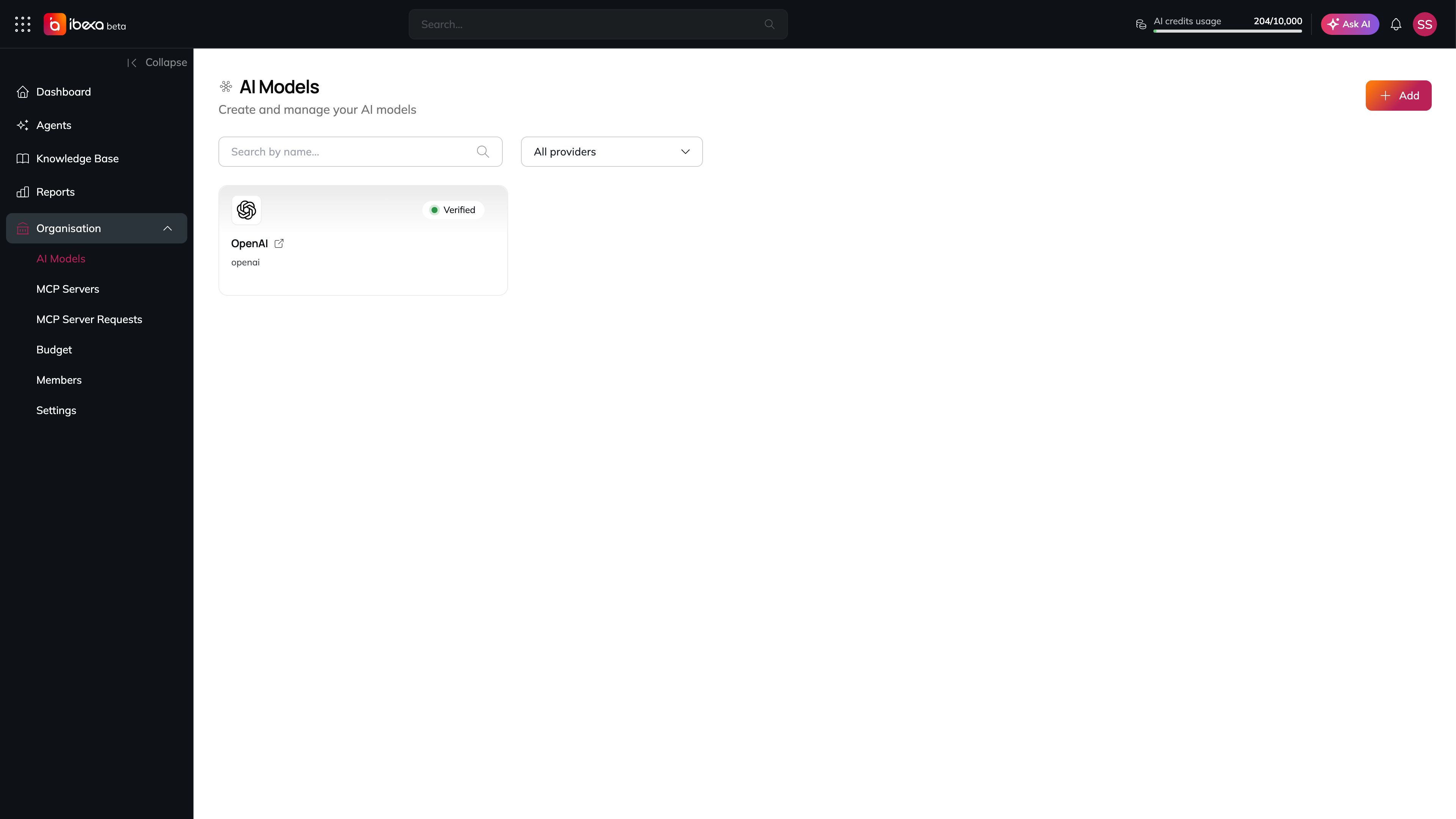
In the main menu, go to **AI Models**. On the AI Models page, select **Add AI Model Provider**. The **Add AI Model Provider** dialog opens. A step indicator at the top shows your progress through the three steps.
The AI Models page
### Step 2: Select the Provider Type
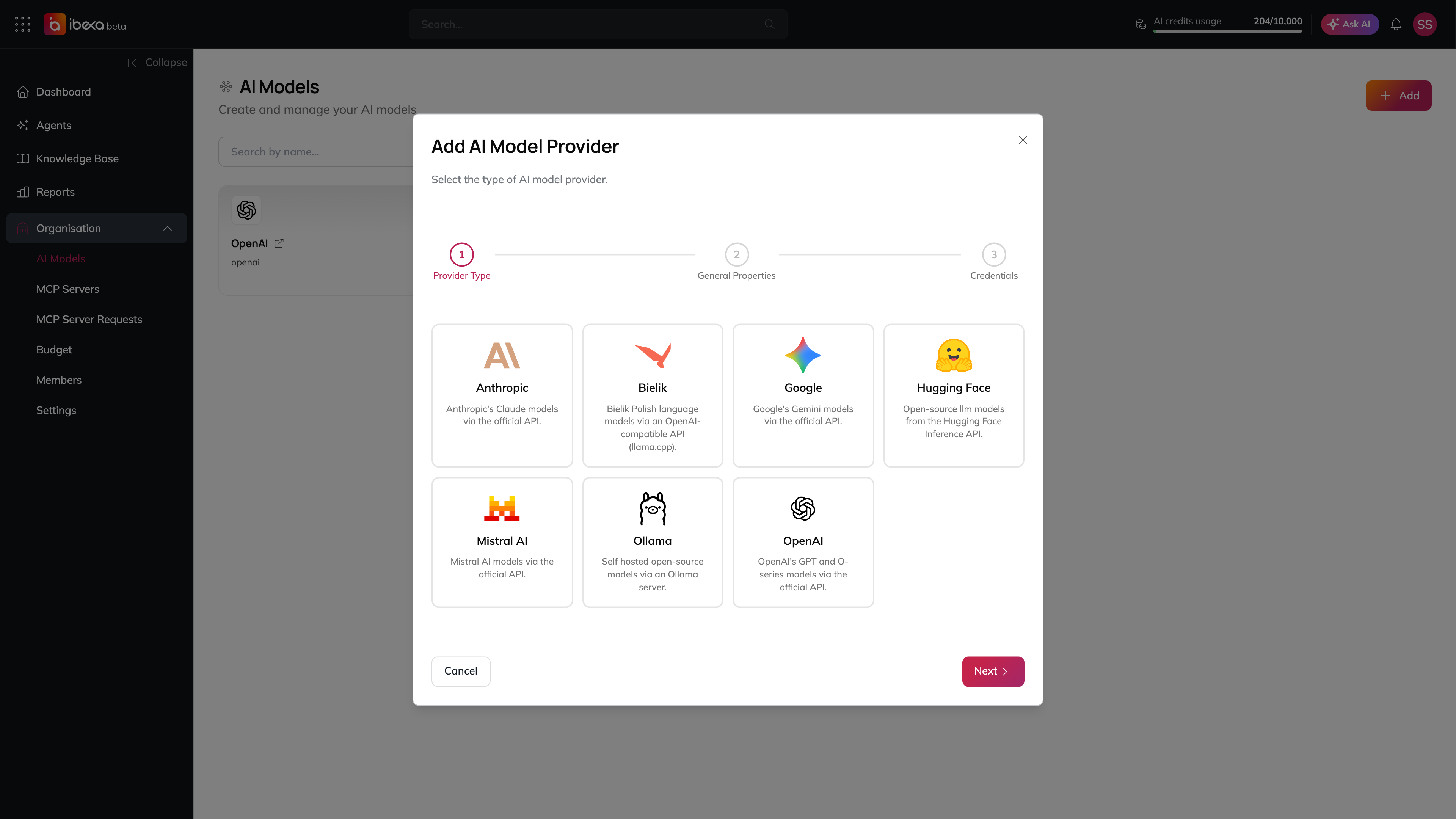
A grid of available provider types is displayed. Select the card for the provider you want to connect (e.g. **OpenAI**, **Google**, **Anthropic**). Select **Next** to continue.
Step 1 of the Add AI Model Provider dialog
### Step 3: Enter General Properties
Fill in the following fields:
* **Name** *(required)* - a human-readable label for this provider (e.g. "Our OpenAI account"). The name is pre-filled based on the provider type you selected; you can change it.
* **Identifier** *(required)* - a unique system identifier, automatically generated from the name. You can edit it if needed. Select **Next** to continue.
### Step 4: Set Credentials
Enter the **API Key** for the provider. This is the secret key you obtain from the provider's website. **Ollama** does not require an API key - only a base URL. Depending on the provider type, additional fields may appear:
| Provider | Additional fields |
| ---------------------------------------------------------------------------------------------------------------------------------------------- | ------------------------------------------------------------------------------------ |
| **OpenAI** | **OpenAI API Base** (custom endpoint URL), **OpenAI Organization** (organisation ID) |
| **Ollama** | **Ollama Base URL** (e.g. `http://localhost:11434`) - required, no API key needed |
| **Bielik** | **Bielik Base URL** (e.g. `http://localhost:8000/v1`) |
| A link to the provider's API key page is shown for providers that support it - follow the link to retrieve your key if you do not have it yet. | |
| To finish: | |
* Select **Save** to save the provider with credentials.
* Select **Skip credentials** if you want to create the provider now and supply credentials later.
* Select **Back** to return to a previous step.
* Select **Cancel** to close the dialog without saving anything. A confirmation message will appear briefly once the provider is created successfully, and you will be taken to the provider's detail page.
## How to Edit an AI Model Provider ?
Use this to update a provider's name, identifier, or type.
### 1. Go to the AI Models page
In the main menu, go to **AI Models**.
### 2. Find the provider
Locate the provider card you want to update.
### 3. Open the actions menu
In the **Actions** column (or overflow **"…"** menu) on the provider's card, select **Edit**.
### 4. Update the details
The **Edit AI Model** dialog opens, pre-filled with the current values. You can update:
* **Name** *(required)*
* **Identifier** *(required)*
* **Type** *(required)* - the provider technology (e.g. OpenAI, Google). Select **Save** to apply the changes, or **Cancel** to discard them.
## How to Update Credentials ?
Use this to supply or replace the API key and configuration for an existing provider.
### 1. Find the provider
In the main menu, go to **AI Models** and locate the provider.
### 2. Open Set Credentials
In the provider's actions menu (or overflow **"…"** menu), select **Set Credentials**.
### 3. Enter the new credentials
Enter the new **API Key** and any optional configuration fields relevant to the provider type (see the table in the Add section above). Select **Save** to apply the new credentials, or **Cancel** to discard changes.
## Viewing a Provider and Its Models
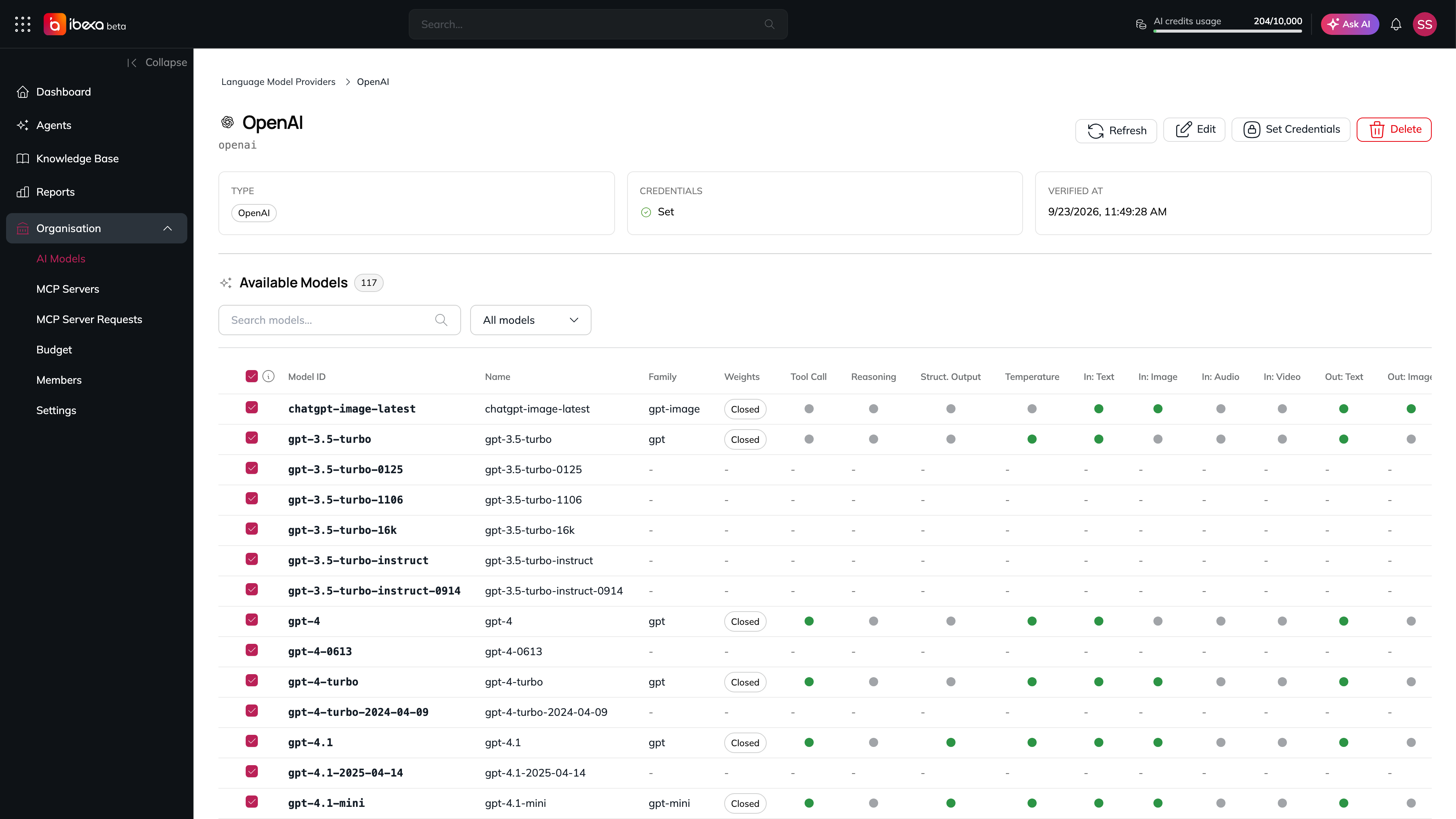
Select a provider's card on the **AI Models** page to open its detail page. The detail page shows the provider's **Type** and **Credentials** status (**Set** or **Not Set**), followed by a table of the models the provider exposes, with columns such as Model ID, Name, Family, Weights, Tool Call, Reasoning, Structured Output, Temperature, supported input/output modalities (text, image, audio, video), Context window size, and pricing (Input Price, Output Price, Cache Read, Cache Write).
A provider detail page with its models
Use the checkbox in each row to enable or disable an individual model - disabled models are not available for use elsewhere in the platform (e.g. when configuring an agent). Use the checkbox in the table header to enable or disable all currently filtered models at once. Use the search box to filter models by ID or name, and the status filter to show only enabled or disabled models.
> **Note:** If no models are listed, the message *"No model data available - Set valid credentials to retrieve available models."* is shown. Set valid credentials for the provider first (see below).
## How to Refresh a Provider's Models
Use this to re-fetch the list of available models from the provider (for example, after the provider has released new models).
### 1. Find the provider
In the main menu, go to **AI Models** and locate the provider, or open its detail page.
### 2. Select Refresh
Select **Refresh** in the provider's actions menu (or overflow **"…"** menu), or the **Refresh** button on the provider's detail page. A confirmation message *"Models refreshed successfully"* appears once the model list has been updated.
## How to Delete an AI Model Provider ?
This action is permanent and cannot be undone. Deleting a provider will remove it entirely from the platform.
### 1. Find the provider
In the main menu, go to **AI Models** and locate the provider you want to remove.
### 2. Open Delete
In the provider's actions menu (or overflow **"…"** menu), select **Delete**.
### 3. Confirm the deletion
A confirmation dialog opens with the message:
> *"This AI model will be permanently deleted. Are you sure? You will not be able to undo this action."*
Select **Delete** to confirm, or **Cancel** to go back without making any changes.
## Troubleshooting
| Issue | What to do |
| ------------------------------------------------------------- | ------------------------------------------------------------------------------------------------------------------------------------------------------------- |
| **AI Models** is not visible in the main menu | Your account does not have Owner or Admin permissions. Contact your organisation owner. |
| The provider type you need is not listed | Contact your platform administrator - the available provider types are configured at the platform level. |
| The **Save** button is inactive after entering the API key | Ensure all required fields are filled in. Required fields are marked with an asterisk (\*). |
| A model is not appearing in dropdowns after adding a provider | Open the provider's detail page and check that the model is **Enabled**. If it is missing entirely, select **Refresh** to re-fetch the provider's model list. |
| Credentials are rejected by the platform | Verify that the API key is correct and has not expired. Retrieve a new key from the provider's website if needed. |