> For the complete documentation index, see [llms.txt](https://docs.ibexa.ai/llms.txt). Markdown versions of documentation pages are available by appending `.md` to page URLs; this page is available as [Markdown](https://docs.ibexa.ai/manual/reports.md).
# Reports
This guide explains how to view, navigate, manage the status of, and delete reports on the Ibexa Agentic Marketing Platform. Reports are generated automatically by your AI agents and provide structured insights, summaries, charts, and action items.
## Before You Begin
Reports are generated by agents - they do not need to be created manually. Once an agent produces a report, it becomes visible on the **Reports** page. Any member of your organisation can view reports. Managing report status (moving reports through the review workflow) requires **Owner** or **Administrator** permissions.
## Understanding Report Statuses
Each report has a status that reflects where it is in the review workflow:
| Status | Meaning |
| ------------- | --------------------------------------------------------------- |
| **Draft** | The report has been generated but not yet submitted for review. |
| **In Review** | The report has been submitted and is being reviewed. |
| **Published** | The report has been approved and published. |
## The Reports Page
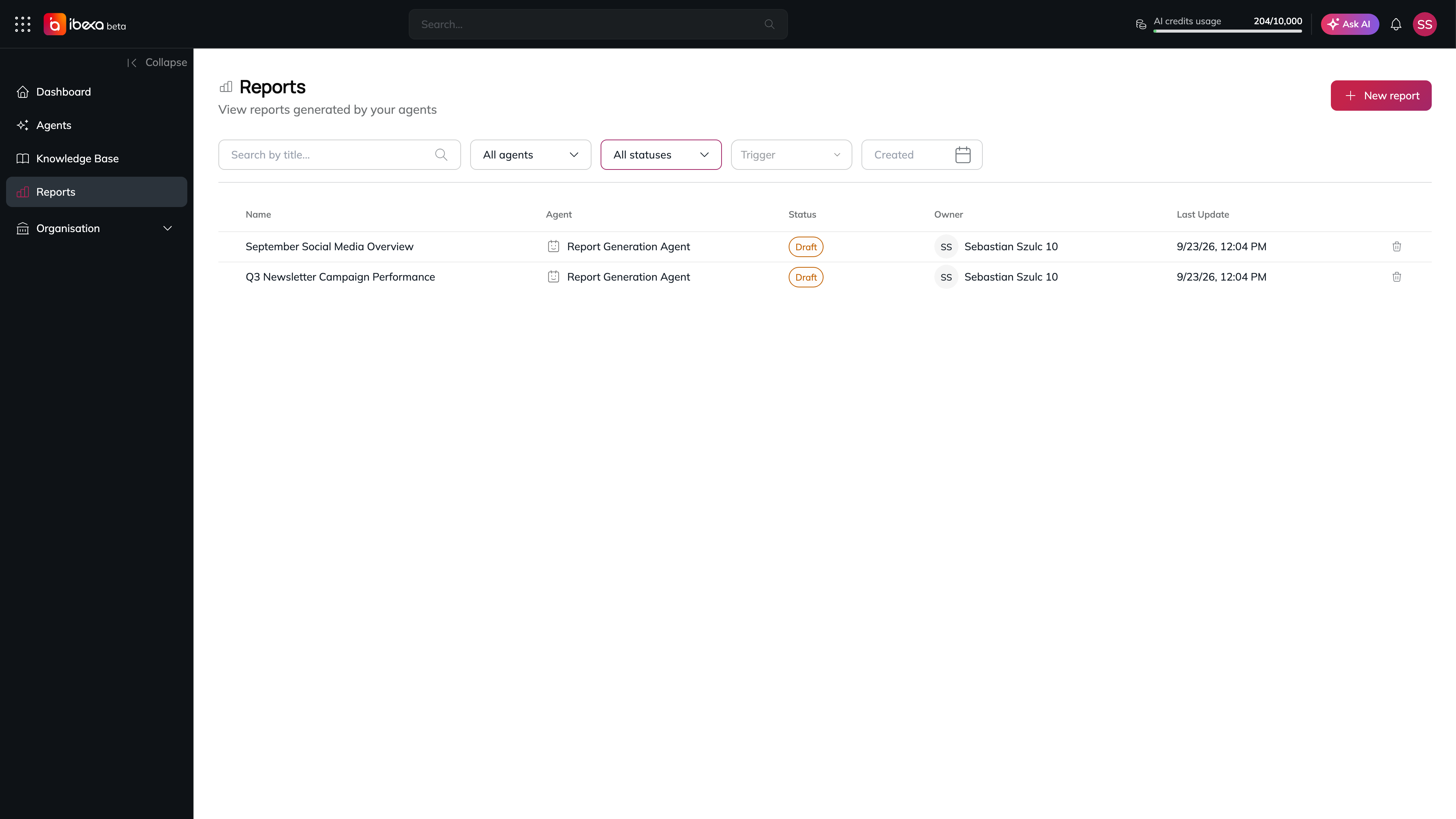
In the main menu, go to **Reports**. The Reports page displays a table of all reports in your organisation, with the following columns:
The Reports page
| Column | Description |
| --------------- | ------------------------------------------------------------------- |
| **Name** | The title of the report. Select it to open the full report. |
| **Agent** | The agent that generated the report. |
| **Status** | The current status of the report (Draft, In Review, or Published). |
| **Owner** | The user who owns the report, or the agent if it has no user owner. |
| **Last Update** | The date and time the report was last updated. |
At the end of each row, a trash icon lets you delete the report.
### Creating a report with the AI Assistant
Select **New report** in the top-right corner of the page to open the AI Assistant in a new conversation set up for creating a report. Describe the report you want, and the assistant builds it for you.
## Filtering and Searching Reports
Use the toolbar at the top of the Reports table to narrow down the list:
* **Search bar** - search by report title (up to 128 characters).
* **Agent filter** - show only reports generated by a specific agent. Open the dropdown and select an agent name, or select **All agents** to clear the filter.
* **Status filter** - show only reports with a specific status. Open the dropdown and select **Draft**, **In Review**, or **Published**, or select **All statuses** to clear the filter.
* **Trigger filter** *(coming soon)* - shown in the toolbar but not yet active.
* **Created** date range - show only reports created within a selected date range. Open the date picker, select a start date and an end date, then confirm your selection. Active filters are shown as **chips** below the toolbar. To remove a single filter, select the **×** on its chip. To clear all filters at once, select **Clear all**.
## Viewing a Report
### 1. Go to the Reports page
In the main menu, go to **Reports**.
### 2. Open the report
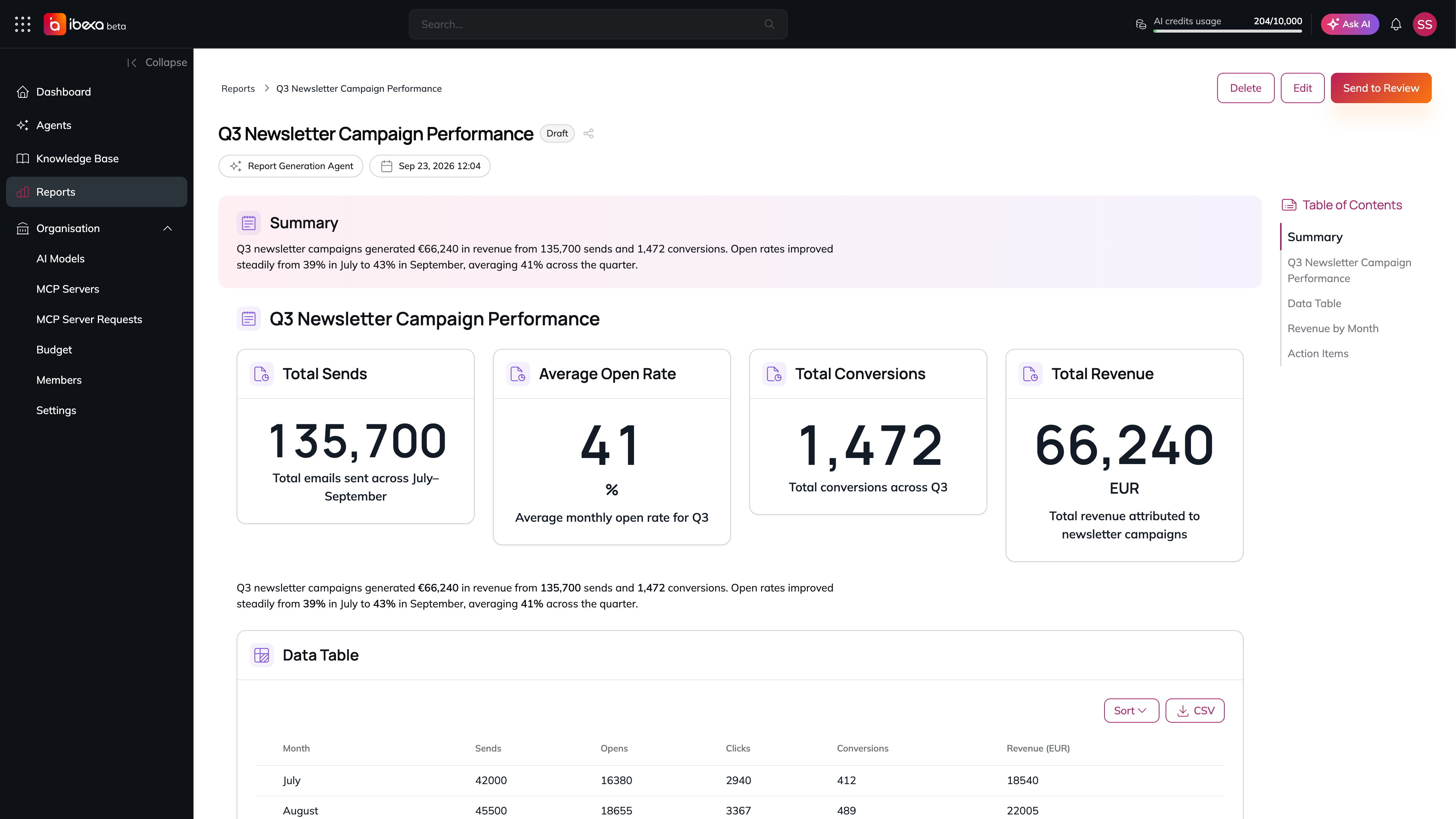
In the **Name** column, select the title of the report you want to view. The Report Detail page opens and shows:
* **Report title**, the current **status badge**, and a share icon *(coming soon)*.
* **Metadata** - the agent that generated it, and the created and last-updated timestamps.
* **Report Summary** - a written summary of the report's key findings.
* **Report content** - the full body of the report, which may include any combination of:
* Text sections and headings
* Key metrics with values and descriptions
* Data tables
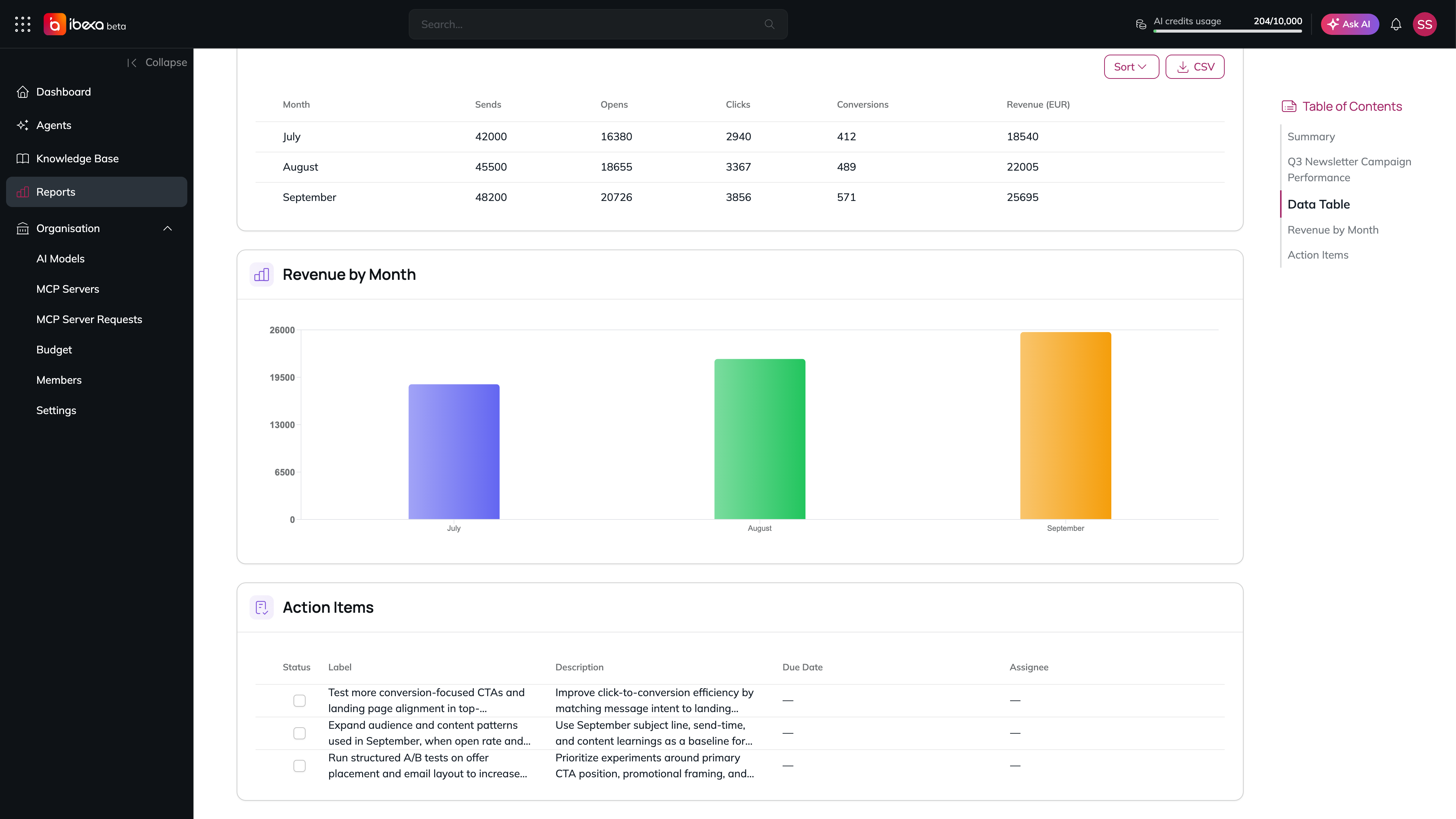
* Bar charts, line charts, and pie charts
* Images
* **Action Items** - a checklist of tasks identified by the agent, each with a status, description, due date, and assignee
* **Table of Contents** (right side) - links to the summary and the report's sections. Select an entry to jump to that section.
A report opened from the Reports page
#### Action Item Statuses
| Indicator | Meaning |
| -------------- | --------------------------------------------- |
| ☐ Unchecked | The action item has not been started (To Do). |
| - Half-checked | The action item is in progress. |
| ☑ Checked | The action item is complete (Done). |
Report content blocks: a chart and action items
## Managing Report Status
You can move a report through the review workflow from the Report Detail page.
### How to progress a report ?
Open the report and select the appropriate action button in the top-right area of the page:
| Current status | Available actions |
| -------------- | ------------------------------------ |
| **Draft** | **Send to Review** |
| **In Review** | **Publish** or **Return to Draft** |
| **Published** | **Unpublish** or **Return to Draft** |
A confirmation message will appear briefly once the status has been updated.
The top-right area also always shows **Delete** (see [Deleting a Report](#deleting-a-report)) and **Edit**. **Edit** opens the AI Assistant so you can ask it to change the report. It is unavailable if no assistant agent has been configured for your organisation.
## Deleting a Report
> ⚠️ **This action is permanent and cannot be undone.**
You can delete a report from either the Reports list or the Report Detail page.
### From the Reports list
Select the trash icon at the end of the report's row.
### From the Report Detail page
Open the report, then select **Delete** in the top-right area of the page.
### Confirming the deletion
A confirmation dialog opens with the message:
> *"Are you sure you want to delete the report \[Title]? This action cannot be undone."*
Select **Delete** to confirm, or **Cancel** to go back without making any changes. A confirmation message will appear briefly once the report has been deleted.
## Troubleshooting
| Issue | What to do |
| ----------------------------------------------------- | ------------------------------------------------------------------------------------------------------------------ |
| **Reports** is not visible in the main menu | Contact your organisation owner - your account may not have access. |
| No reports appear on the Reports page | Reports are generated by agents. If no agents have produced reports yet, the list will be empty. |
| A report you expect is not in the list | Check that no filters are active. Select **Clear all** in the filter toolbar to reset all filters. |
| The status action buttons are not visible on a report | You may not have Owner or Administrator permissions. Contact your organisation owner. |
| A report does not load | Check your internet connection and refresh the page. If the problem persists, contact your platform administrator. |